
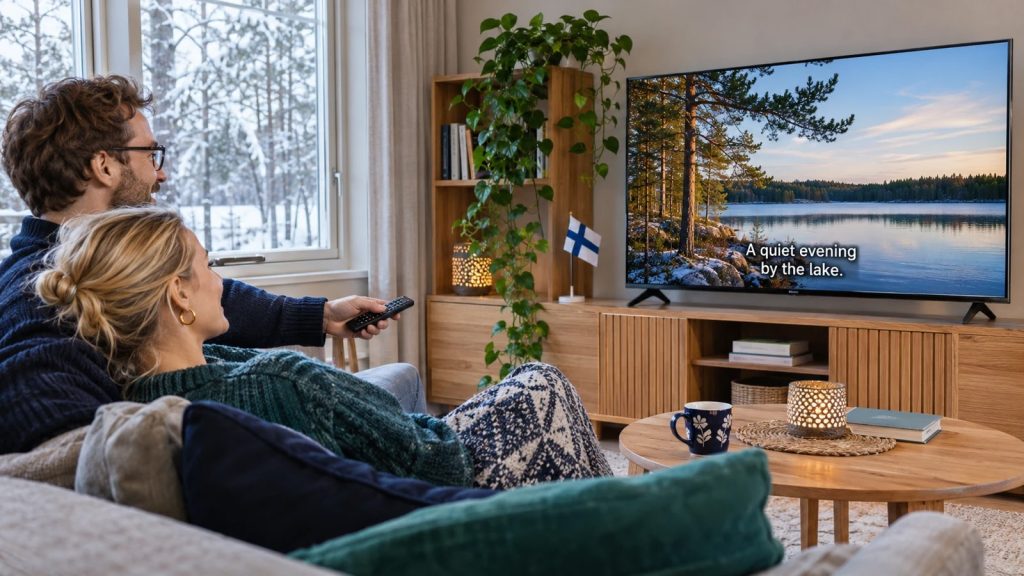
When watching IPTV in Finland, a working picture does not automatically mean the audio and subtitles are right for your household. A programme may play in its original language, offer several soundtracks or include subtitles that your player has not selected.
Quick answer: start playback, open the player’s audio and subtitle controls, and inspect the tracks available for that exact programme. Choose the language you need, then test whether the preference survives a channel change and an app restart. Changing the app’s interface language alone is not a reliable way to change the programme’s soundtrack.
This guide focuses on language selection and missing subtitles. For the broader country overview, see our guide to IPTV in Finland.
IPTV Finland: Which Language Setting Should You Change?
Separate the language of the application from the language carried by the programme. These settings solve different problems, and their availability depends on the app and content source.
| Setting | What it controls | What to check |
|---|---|---|
| Interface language | Menus, buttons and navigation | Whether the app is comfortable to use |
| Audio track | The soundtrack you hear | Which tracks the current programme actually provides |
| Subtitle track | Selectable on-screen text | The language, subtitle type and player support |
A Finnish menu can still accompany an English soundtrack. Equally, selecting Swedish as your preferred subtitle language cannot create a Swedish track that is absent from the source. Treat a saved preference as a request for an available track, rather than a guarantee across every programme.
Availability belongs to the specific programme
As a concrete example, Elisa’s official viewing tips describe multiple audio and subtitle choices for some films and give separate instructions for different boxes. That illustrates why the title and device matter; it does not establish which tracks another IPTV service supplies.
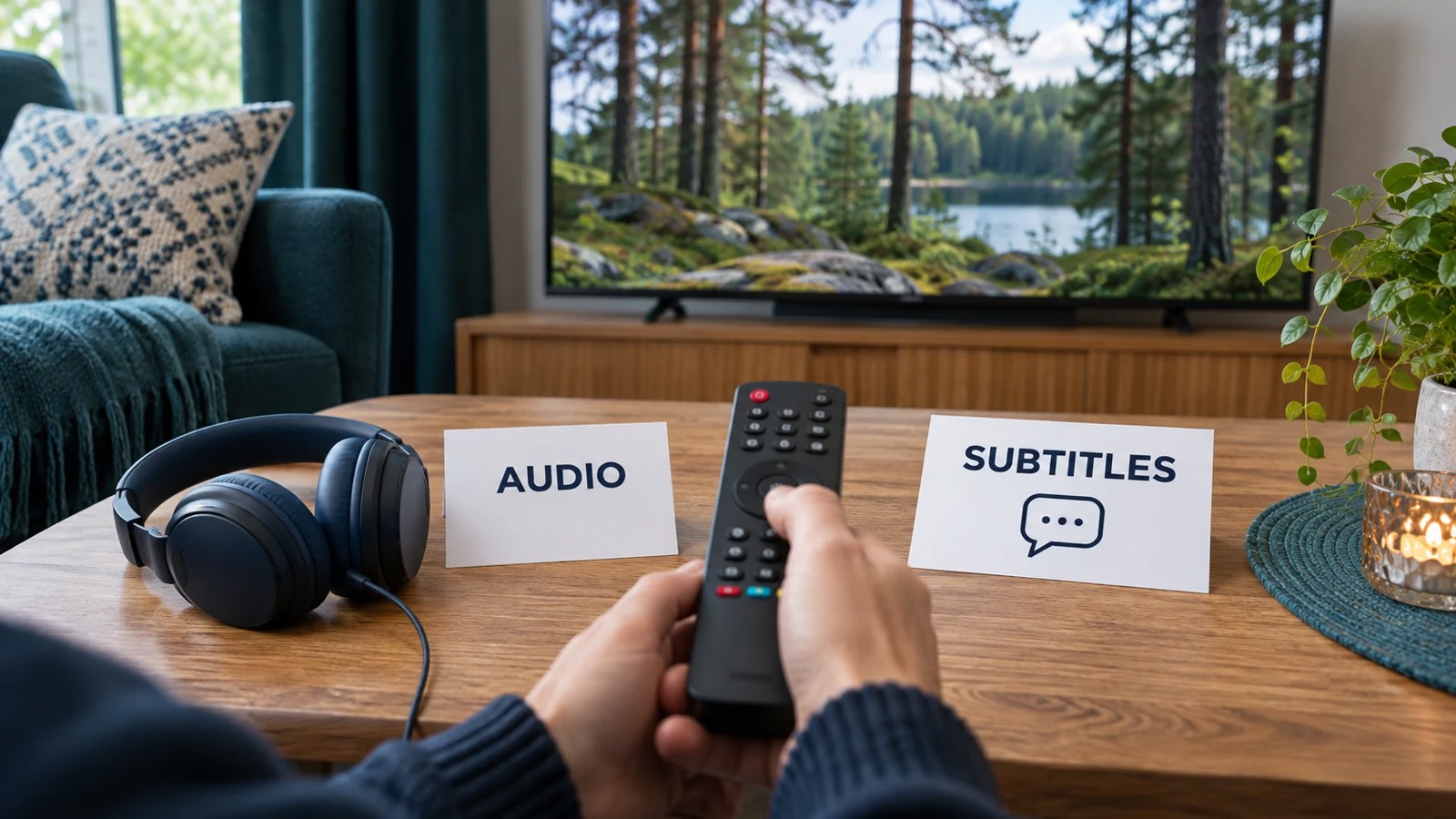
How to Select Audio and Subtitles During Playback
Use these checks with the official player or a compatible app supported by your service. Button names vary, so look for labels such as Audio, Language, Subtitles or a speech-bubble icon rather than assuming one universal menu path.
- Open the exact programme you want to watch. The channel list or programme description may not show all playback options.
- Bring up the playback controls. On a television, use the remote’s selection or options control; on a phone, tap the video.
- Inspect the audio choices. Select the required language if it is listed. Listen to spoken dialogue to verify the result.
- Open the subtitle choices separately. Enable the appropriate track and watch a scene with dialogue. A quiet opening scene is a poor test.
- Check the result after changing content. Return to the programme, switch channels and restart the app to find out which choices persist.
If your player offers a default audio or subtitle language, save it after this test. Note whether the setting applies to the whole application, one profile or only the current stream. For general device preparation, use the Nordic IPTV setup guide.
Why Finnish or Swedish Subtitles May Be Missing
The useful question is whether the track is absent, unselected or failing to render. Changing unrelated settings makes these cases harder to distinguish. Work through one programme at a time.
No subtitle choices appear
First test a second programme that the service confirms has subtitles. If that one works, ask about the original title or live feed. If neither exposes a track, record the app and device details and ask whether that player supports the supplied subtitle format. A different stream entry may have different tracks, but check that with support rather than assuming a higher-resolution label means better language coverage.
A track is listed, but no text appears
Choose the track explicitly, test a dialogue scene and reopen playback. If permitted by your subscription, compare the same programme in another supported player or device, stopping the first stream before starting the second. A successful comparison helps narrow the issue to the first playback setup; it does not identify the cause by itself.
Subtitles appear twice or cannot be switched off
One layer may be part of the picture while another is generated from a selectable subtitle track. Turn off the selectable track as a diagnostic check. If text remains, describe that result to support. A player switch cannot normally remove text already embedded in the delivered image.
Subtitles appear, but the timing is wrong
Check whether the mismatch happens on one programme or on several. If your player provides a subtitle-delay control, record its original value before making a small adjustment. Keep the comparison within the same scene. A setting that helps one title may make another worse, so avoid applying a global correction without further testing.
A Practical Language Test for a Finnish Household
Before relying on a particular setup, choose three real viewing examples: a Finnish-language programme, a programme for which you need Swedish subtitles, and a title watched in its original language. These are test categories, not a claim that a particular service includes them.
- Write down the exact programme, channel or episode.
- Record which audio and subtitle tracks are visible.
- Test readability from your normal seating position.
- Check the result after closing and reopening playback.
- If accessibility matters, verify the subtitle type rather than relying only on a language label.
This gives you a concrete support question: “On this programme, using this device and app version, the Finnish subtitle track is listed but no text appears.” It is more actionable than “Finnish channels do not work.”
What to Send Support About a Language Problem
Include the device model, app name and version, programme title, live or on-demand mode, and the date and time of your test. List the tracks shown and the comparison you tried. If you send a screenshot, crop out account details and private playlist URLs. Use the site’s support contact page for account-specific help.
Frequently Asked Questions
Does IPTV in Finland always include Finnish subtitles?
No country label establishes subtitle availability for every title. Confirm the specific programmes you need and test them on the intended device.
Can I use Finnish audio and Swedish subtitles together?
That depends on the available tracks and the player’s controls. Inspect the audio and subtitle menus separately and verify the combination during playback.
Will changing the TV’s menu language fix the soundtrack?
Start with the player’s playback audio controls. The television’s interface language and the stream’s soundtrack are separate settings, although some applications may use a system preference as a default.
Should I reinstall the app immediately?
First record your settings and test another programme. Reinstallation can remove saved preferences without fixing a missing source track. Follow the app’s own instructions if troubleshooting reaches that step.
Related Finland Viewing Guides
Use the country overview for service and device questions, the setup guide for getting playback working, and support for a specific missing track. This language checklist is most useful once your picture already plays reliably.