
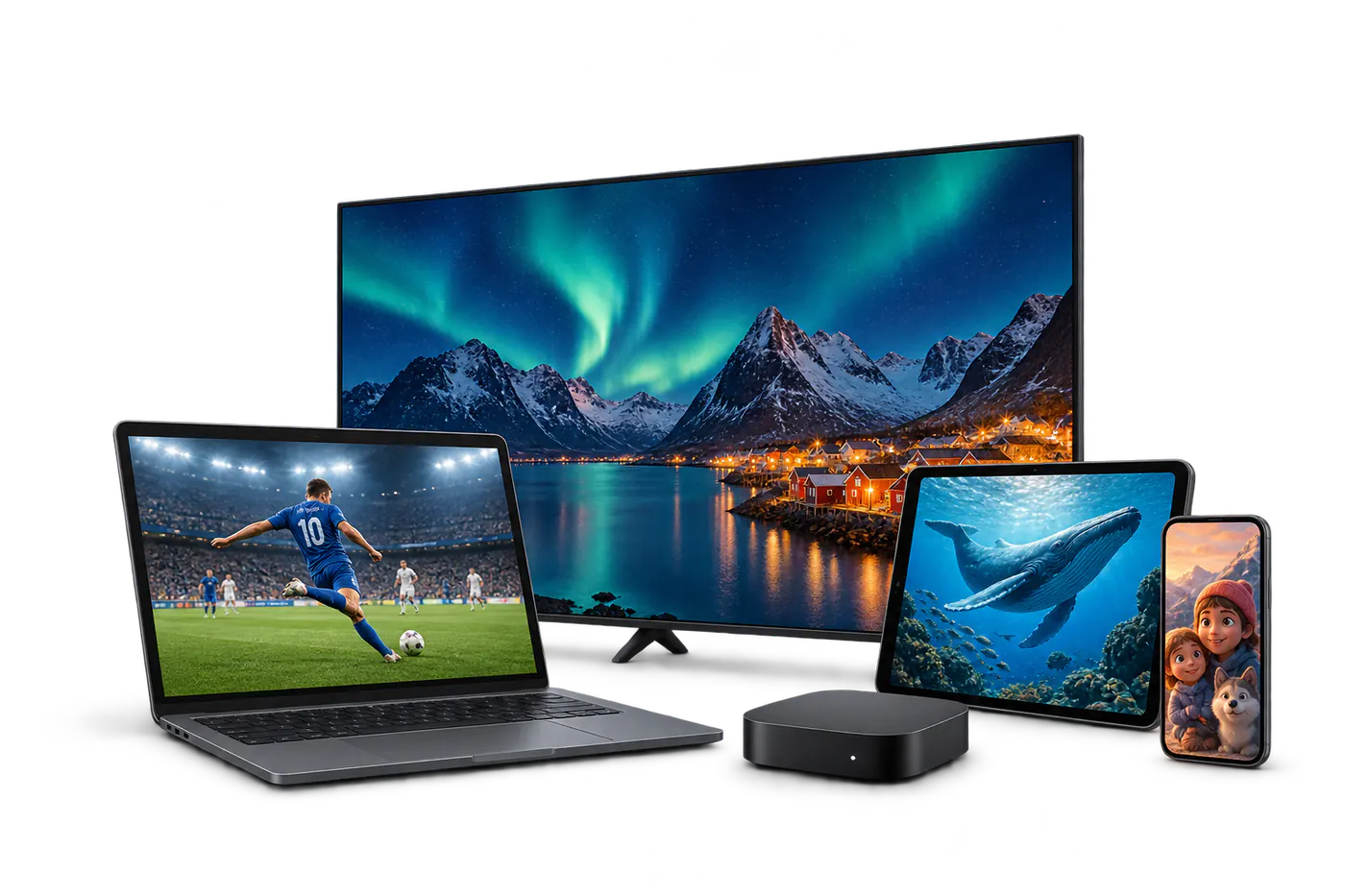
Step-by-step Nordic IPTV setup guidance for Smart TV, Android TV, Fire TV, Apple TV, phones, tablets and computers.
Nordic IPTV setup: the simple workflow
- Choose your device. Smart TV, Android TV, Fire TV, Apple TV, phone, tablet or computer.
- Install a compatible player. Use the official app store for your device where possible.
- Add your access details. Enter the playlist or account information exactly as supplied by your service.
- Refresh the library. Allow the app to load channels, groups and EPG data.
- Test playback. Try more than one stream and confirm audio, picture and guide data.
Smart TV setup tips
Keep the TV software and IPTV app updated. If possible, connect the main television by Ethernet. If you use Wi‑Fi, 5 GHz generally performs better near the router, while 2.4 GHz can reach farther but may be busier.
Fix common buffering problems
- Restart the router and viewing device.
- Pause large downloads and cloud backups while testing.
- Try Ethernet or move closer to the Wi‑Fi access point.
- Test another channel to see whether the issue affects one stream or the whole connection.
- Confirm the device date and time are correct.
What to send support
Include your device model, IPTV app name, connection type and a short description of what happens. This is much more useful than only saying that the service “does not work”.